


75% of students waste time every week looking for notes, files, or deadlines. What if one app could solve this? Notion can be your central hub for notes, tasks, schedules, research, and personal to-dos. It helps you work faster and stay on top of your studies.
This guide will show you how to use Notion for studying. You’ll learn about pages, databases, and views like table, board, calendar, and list. The template gallery helps you get started quickly. Notion AI can summarize notes, pull out key insights, simplify text, and help with writing and brainstorming.
Notion is one of the most flexible study organization apps. It keeps your lecture notes, drafts, references, and brainstorming connected and easy to find. With automatic backups and free upgrades for students and educators, it’s a great alternative to many student and academic planner apps.
By the end, you’ll see the benefits. You’ll have less chaos from scattered files, clearer task priorities, easier collaboration, and a single dashboard for your academic and daily life.
Introduction to Notion for Students
Notion is a cloud-based tool that mixes flexible pages with strong databases. You can make pages for notes, lists for tasks, and even embed videos or PDFs. Databases are like smart spreadsheets, with each row being a record and columns for details like Status and Date.
What makes Notion stand out is how you can link databases together. A single project can be seen as a table, board, calendar, or gallery. You can even link a grade tracker to a reading list, making all your study materials connected.
Notion works great with other apps to organize your studies. It can bring together content from Google Drive, Slack, and calendars. Students often use it to keep track of deadlines and notes in one spot. There are templates like Class Notes and Course Schedule to help you get started.
Notion is a good choice if you want to sync across devices, have automatic backups, and a free student plan. Many students see it as a second brain for notes, task boards, and research. Compared to other apps, Notion is known for its flexibility and database model.
Begin by making a course page and a simple notes database. As you get more comfortable, add more features and views. This way, you can use Notion without feeling overwhelmed and replace many tools with one organized space.
Setting Up Your Notion Workspace
Before you start organizing your studies, make sure Notion is ready on all your devices. Sign up for free at notion.com and confirm your email. If you have a school email, you can get the Plus plan for free, which offers more features.
Download the Notion app for your computer and phone. Also, add the Web Clipper extension to save articles easily.
After installing, explore the interface quickly. The left sidebar shows pages and databases, making it easy to switch between classes and projects. Pages can be nested inside other pages, keeping your notes and tasks organized.
Databases have features like Status, Priority, and Date to help sort your content. This makes it simpler to find what you need.
Use the / menu to add blocks like text, headers, and images. Blocks help you organize lecture notes and lab reports. Databases can be viewed in different ways, like tables or calendars, to fit your study style.
Set up a dashboard that has everything you need just a click away. Create a Student Dashboard as your main page. Add shortcuts to Class Notes, Resources, Tasks, Calendar, and Research.
Use starter templates from the gallery to save time. These templates include Class Notes, Student Dashboard, and Course Schedule. They help you get started faster.
Customize your dashboard with quick buttons and widgets. This way, your schedule and tasks are always in sight. By setting up your dashboard, you join many students who use Notion to stay organized during busy semesters.
Organizing Your Study Materials
Begin by setting up a simple structure that fits your courses. A clear setup makes notes easy to find and review for exams. Use names like “BIO101 — Cell Respiration” for quick sorting and filtering.
Creating Pages for Different Subjects
Create a Class Notes database or individual subject pages. Include fields like Class, Type, Status, Topic, Attachments, and Last edited. These help you filter by lecture, reading, or assignment.
Tagging reviewed notes helps track what needs a second look.
Using Folders and Links
Notion uses nested pages instead of folders. Build a course page with subpages for lectures, readings, assignments, and exams. Use Relation properties to link notes to Projects, Resources, or Tasks databases.
Linking a lecture note to a task saves time. This method is great for study schedule apps and study management apps.
Integrating Files and Media
Drag and drop PDFs, slides, images, and videos into pages or attach them as database properties. Use embeds for Google Docs, Sheets, and YouTube. The Web Clipper saves articles and images directly into a Resources database.
Attach references to drafts to avoid lost citations. Keeping all lecture notes in one database makes tagging and review more effective.
| Item | Where to Store | Recommended Property | Why It Helps |
|---|---|---|---|
| Lecture Notes | Class Notes database | Topic, Date, Reviewed | Easy filtering for revision and exam prep |
| Assigned Readings | Course → Readings subpage | Source, Pages, Attachments | Quick access to PDFs and web clippings |
| Project Files | Projects database linked to Class Notes | Related Course, Status, Deadline | Keeps milestones and references together |
| Media & Embeds | Media gallery or page embeds | Type, Link, Duration | Streamlines review of videos and lectures |
Try syncing your Notion setup with calendars or exporting key tasks to your preferred study schedule apps. This way, your notes, deadlines, and plan will work well with study management apps and student planner apps you already use.
Making the Most of Databases
Databases are key to a clean Notion workspace. They help organize tasks, notes, readings, and research. You can use fields like Title, Status, and Due Date to keep things tidy.
Setting Up a Study Database
Begin with databases for Tasks, Projects, Class Notes, Resources, Readings, and Research. Each item should have a Title and Status. Use Priority and Due Date for sorting.
Link class notes to projects with Relation. Add Multi-select tags for topics and modules. This setup is like top study management apps.
Creating Templates for Repeated Use
Templates make work faster for lectures, readings, and lab logs. Create a Lecture Note template with sections for Objectives and Key Points. Make a Reading Summary template for quick summaries and insights.
Weekly lab and meeting-note templates ensure consistent entries. Templates save time and make your database look polished.
Leveraging Filters and Sorting
Filters help narrow items by class or topic. Sort by Created date, Due Date, or Priority. Create views like Board, Calendar, and Table for different needs.
Make views for each course and for unfinished notes or tasks. Use Relation and Rollup to show linked resource counts and summaries. These features are like those in academic planner apps.
Advanced tip: use Rollups to show total readings per project. Let AI Summary auto-generate takeaways. This keeps your workspace focused and aligned with study goals.
Note-Taking with Notion
Good notes make studying faster and less stressful. Use Notion to create a simple system for capturing lectures and key ideas. This system links materials for later review.
How to Take Effective Notes
Create a Class Notes database. Add a new page for each lecture with a clear title and date. Use topic tags and a Status field for tracking.
Structure each note with a header, bullet points, and a short summary. Include a Key Takeaways block for quick review.
Use relation properties to link notes to Projects or Assignments. Tag with Topic for easy essay drafting or studying. This workflow makes your notes searchable and organized.
Utilizing Markdown for Formatting
Type ## for headers, – for bullet lists, and [] for checkboxes. Notion’s slash menu offers quick access to formatting options. These shortcuts save time and keep your focus on ideas.
Create templates in your Class Notes database. Templates include preset headers and a Summary section. They speed up note-taking and maintain consistency.
Embedding Multimedia in Your Notes
Drop images, diagrams, and PDFs directly into pages. Use the Web Clipper to save readings into a Resources database. Embed these pages into lecture notes for context.
Embed audio for replaying hard-to-follow explanations. Notion AI can simplify paragraphs and translate quotes. Embedding multimedia makes your notes richer than paper notes.
Follow these steps to make Notion a hub for study organization. Tagging, relations, and multimedia embedding link everything you need for efficient study sessions.
Planning Your Study Schedule
Good planning makes study time feel less chaotic. Use a clear calendar, reminders, and simple progress trackers. This helps turn big deadlines into steady steps. It works whether you prefer apps like Google Calendar or built-in tools inside Notion.
Creating a Study Calendar
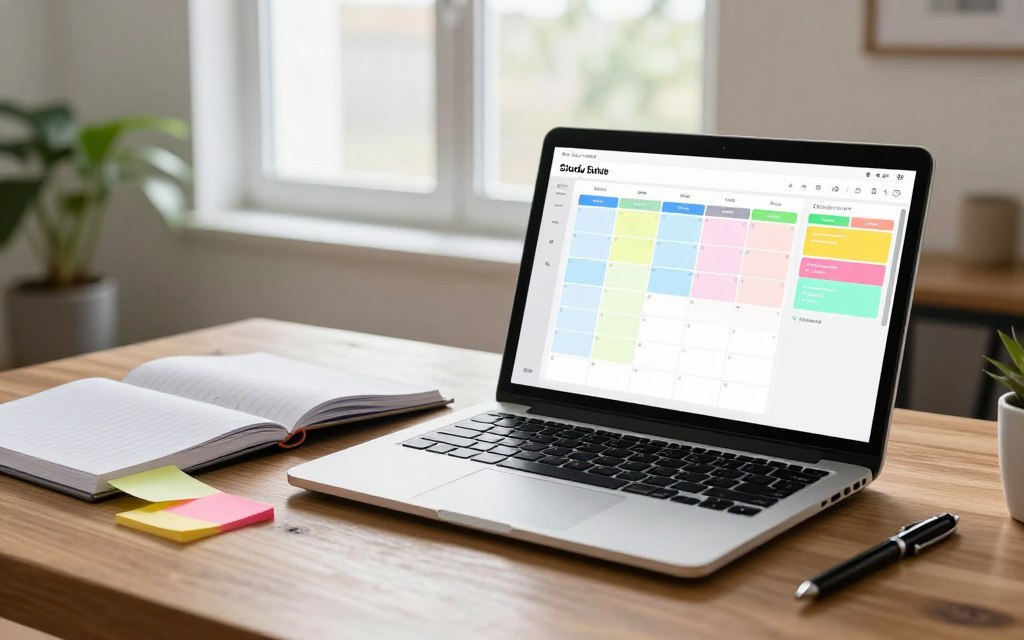
Build a Calendar view inside a Tasks or Assignments database. Map exams, papers, and weekly study blocks. Link each entry to lecture notes or readings so you can jump from date to content. If you use external calendars, embed Google Calendar for cross-platform syncing.
Setting Reminders for Deadlines
Assign Due Date properties for every task and enable Notion reminders. Get alerts before deadlines. Pair Due Date with Status and Priority properties to spot urgent items at a glance. Many students combine Notion with study planner apps to layer mobile notifications on top of in-app reminders.
Tracking Your Progress
Use Status tags like Not started, In progress, and Done to update work quickly. Add Progress bars or Rollups to show completion across projects. Create daily and weekly dashboard views that filter today’s tasks and upcoming deadlines so you always know what’s next.
Time-blocking helps keep routines steady. Create weekly schedule templates and use recurring buttons to add repeat study sessions. Relate tasks to larger projects, such as a final paper, and track milestones to avoid last-minute rushes.
| Feature | How to Set It Up | Benefit |
|---|---|---|
| Calendar View | Create a Calendar in a Tasks database or embed Google Calendar | Visual timeline of deadlines and study blocks |
| Reminders | Use Due Date properties and enable Notion reminders; pair with mobile notifications from study planner apps | Timely alerts that prevent missed deadlines |
| Priority & Status | Add Priority and Status fields to sort tasks by urgency | Focus on what matters most each day |
| Progress Tracking | Use Rollups or progress bars and filter views for daily/weekly summaries | Clear sense of momentum and completed work |
| Recurring Templates | Create weekly templates and automated buttons for repeated sessions | Easy time-blocking and consistent study habits |
| Integration | Combine Notion with study schedule apps or student planner apps for mobile sync | Seamless planning across devices |
Collaborating with Classmates
Working with classmates in Notion makes group work easier. Use shared pages for meeting notes, research, and timelines. This method works great with other study apps for reminders or tracking time.
Sharing Pages with Peers
Invite classmates by email using the Share button. Free Notion for Education accounts allow broad sharing. But, some permissions might need a paid plan.
Create a shared database for group work. Keep personal notes private to avoid sharing too much.
Using Comments for Feedback
Add comments for feedback on any block or database row. Use @mentions for updates in your inbox. This keeps discussions focused on tasks, making reviews easier.
Group Projects in Notion
Use a Projects database for assignments and Tasks. Assign tasks, set priorities, and view tasks in stages. Project pages collect meeting notes and resources.
For better teamwork, have a shared tasks database and a private planner page. Use Notion with other apps for calendar syncing or mobile alerts.
Customizing Your Work Environment
Make Notion your own study zone by changing visuals and quick links. Small changes can make a big difference in your work. Use icons, covers, and colors to make pages easy to find.
Choosing Themes and Icons
Choose the same icons and images for each course. Use emojis for notes and a photo for labs. This makes it easy to find what you need.
Using Widgets for Quick Access
Add widgets for clocks, habit trackers, and countdowns. This keeps deadlines in sight. Embed Google Calendar or Trello to avoid switching tabs.
Creating a Personal Dashboard
Make a homepage with Today’s tasks, Weekly schedule, and Class Notes shortcuts. Add progress bars and quick links to reading lists. Use one-click buttons for adding tasks or journal entries.
With visual cues, handy widgets, and a central dashboard, your study system is top-notch. It rivals the best student planner apps and academic planners.
Utilizing Notion for Research
Notion can be your go-to spot for all research needs. It’s great for gathering sources, tracking experiments, and linking references to your drafts. Think of it as a mix of a lab notebook and a filing cabinet.
Start a Resources or Literature Review database. Add fields for Title, Author, Publication Date, Type, Key insights, and Relation to Projects or Chapters. Use table view for fast scanning and gallery view for a visual look at papers, books, and podcasts.
Set up Relation properties to connect each entry to your class notes or thesis chapters. Add a Summary or AI Key Insights property to summarize main points in a few sentences. This makes your research easy to access while you write and edit.
Collecting web clippings
Install the Notion Web Clipper to save web pages into your Resources database. Choose the database and add metadata like author and publication date when you clip. Clips include text and images, so you can preview sources without leaving Notion.
Use tags and quick filters to sort peer-reviewed articles from blog posts and news. This helps you find reliable sources during literature reviews or when preparing presentations.
Managing references
Link Resources to Class Notes, Project drafts, or manuscript pages via Relation properties. This keeps citations attached as you write. Keep a Manuscript page with a checklist for figures, tables, and submission tasks, plus a Gantt-like timeline for long-term planning.
Create a lab notebook database for daily entries and experiment logs. Use templates and simple automations for repeated entries to save time and reduce errors. Export references to citation managers like Zotero or EndNote when you need formatted bibliographies.
Notion pairs well with other study management apps and academic planner apps. Use Notion as your research core and connect it to other apps for calendars or task tracking. This hybrid approach keeps you organized without losing flexibility.
Staying Motivated and Focused
Keeping momentum during a study term is all about clear habits and systems. Use Notion to break down big goals into smaller wins. Track your work time and limit tasks to stay focused without feeling overwhelmed.
Creating Daily To-Do Lists
Make a simple checkbox database or table for today’s tasks. Pin it to your dashboard. Filter it to show only Today or This Week to keep your list short and actionable.
Mark items as Done to see quick progress. Use Priority fields like High, Medium, Low. Drag items to set your work order.
Setting SMART Goals in Notion
Create a Goals database with fields for Specific, Measurable, Achievable, Relevant, and Time-bound elements. Link each goal to Projects and Tasks. This way, daily work aligns with long-term goals.
For big projects like dissertations, add target dates and measurable checkpoints. This keeps your goals visible next to your daily tasks. It helps you choose tasks that really matter.
Tracking Time Spent on Tasks
Add a Time Spent property to tasks or create a dedicated Time Log database. Use timers from third-party tools or manual entries to record sessions.
Limit “In progress” status to a few items to focus on what matters. Review weekly totals to see where you’re efficient and where you lose time.
Use study planner apps and schedule apps as references. They offer useful layouts and reminders you can mimic in Notion. Compare their features to build a setup that fits your workflow.
| Strategy | Notion Setup | Why It Works |
|---|---|---|
| Daily focus | Checkbox table filtered to Today; pinned to dashboard | Keeps attention on a short, achievable list and boosts momentum |
| SMART goals | Goals database with Specific, Measurable, Achievable, Relevant, Time-bound fields | Connects daily tasks to long-term aims and clarifies progress |
| Time tracking | Time Log database or Time Spent property plus embedded timers | Reveals productivity patterns and supports better planning |
| Task limits | Status workflow restricting active items to 2–4 | Reduces multitasking and lowers stress while improving output |
| Priority ordering | Priority field (High/Medium/Low) with manual ordering inside groups | Helps you pick the next task without decision fatigue |
When you combine Notion with insights from top study organization apps, you get a focused system. Keep lists short, link tasks to goals, and log your time. This way, each study session has a clear purpose.
Tips and Tricks for Effective Studying
Make Notion work for your classes with a few simple habits. These habits reduce friction, keep your work in sight, and prevent tasks from piling up. Here are tips on speed, ready-made setups, and avoiding overload to keep your study time productive.
Keyboard shortcuts for faster navigation
Learn key Notion shortcuts for quick navigation. Use / to open the block menu, Cmd/Ctrl+K to jump between pages, and Cmd/Ctrl+P for quick find. Format text without the mouse using Cmd/Ctrl+B, Cmd/Ctrl+I, and Cmd/Ctrl+U.
Drag-and-drop blocks to reorder notes and use multi-select to move many items at once. These small speed gains are crucial when capturing ideas between classes.
Utilizing templates from the community
Check out Notion’s Template Gallery for Class Notes, Student Dashboards, and Course Schedules. Adapt a template instead of starting from scratch. Find specialized graduate templates on Gumroad and Etsy, like lab notebooks and thesis planners.
Choose templates with relations, formulas, or automations to simplify your databases. Swap fields to fit your courses and keep the template simple for daily use.
Managing information overload
Use properties and filters to segment content by Class, Topic, or Status. Create focused views like “This Class” or “Unfinished Notes” to limit what you see each day.
Use short checklists and single-task cards instead of deep subtasks. Set a Priority property and keep only a few items marked In Progress to avoid choice paralysis.
When reading long texts, use Notion AI to summarize pages and pull out key insights. This way, you don’t have to re-read entire articles.
- Favor one clear inbox for tasks and notes so you always work from written items.
- Keep templates minimal: one dashboard, one calendar, one task view per class.
- Schedule short weekly cleanups to archive finished items and refresh filters.
Pair Notion with other study organization apps when needed. Compare tools and pick the best study organization apps that match your workflow. If you need mobile capture or quick timers, mix Notion with apps for a complete setup. Over time, you’ll find which apps complement Notion and boost your results.
Conclusion: Enhance Your Study Experience with Notion
Notion combines pages and databases to keep all your study stuff in one spot. You can see your notes and tasks in different ways, like tables or calendars. It also has templates and a tool to save web pages, making it easy to work with others.
With Notion, you won’t have to deal with lots of separate files anymore. It’s great for both undergrad and graduate studies, helping you stay organized alone or with a team. It’s like a central hub for all your study needs.
To start, just sign up and grab any student discounts if you qualify. Then, import a template and set up a basic database. As you get more comfortable, add more views and links to keep your setup simple and useful.
Use Notion as your main study planner. Link your notes, deadlines, and research together. The app’s templates and views will help you stay on track. This way, you can study better, stay organized, and avoid the stress of using too many tools.