

75% of students who schedule weekly study blocks report higher retention. This shows that using a calendar can greatly improve your semester. If you want to avoid last-minute stress, learning to use Google Calendar for studying is a smart move.
This guide will show you how to set up Google Calendar. You’ll learn to manage classes, study sessions, deadlines, and personal commitments. This will help you focus better and improve your grades.
Google Calendar works on both web and mobile, keeping your schedule in sync. It has features like repeatable events and a mobile lockscreen widget. Plus, it integrates with Gmail, Google Drive, and Google Tasks, making it a reliable planner.
By the end of this article, you’ll know how to create recurring study blocks and color-code subjects. You’ll also learn to attach resources, share calendars with classmates, and set up smart notifications. This way, your plan will adapt as the semester goes on, helping you stay productive.
Understanding Google Calendar Basics
First, learn what Google Calendar can do for your study life. It’s a free digital calendar for the web, Android, and iOS. It shows events, reminders, and tasks on all devices, so you always see the same schedule. Knowing the basics is key for using Google Calendar well.
What is Google Calendar?
Google Calendar is more than a simple planner. It’s a tool that integrates with Gmail and lets you add details like location and descriptions. You can view your schedule daily, weekly, or monthly, set recurring events, and get notifications. This makes it a great tool for students.
Key Features for Students
You can create events with titles, times, locations, and notes. Use recurring events for classes and study blocks. Set reminders to avoid missing sessions.
Share calendars and control permissions for group projects. Attach Google Drive files or link documents from Google Docs. Sync with Google Tasks and Google Keep for assignments and quick notes. These features help manage time effectively.
Setting Up Your Account
Sign in with your Google account and open Google Calendar. Click the “+ Create” button to add events. Make separate calendars for classes, study time, and extracurriculars.
Enable sync with your phone and add a calendar widget to your lock screen. Enter semester start dates, class times, and major deadlines early. Use recurring events for weekly classes and study sessions. These steps help you use Google Calendar effectively.
Setting Up Your Study Schedule
Begin by mapping your week in Google Calendar. This lets you see class times, work shifts, and personal commitments easily. It helps you create a study schedule that fits your energy and deadlines.
Choosing Study Blocks
Choose study blocks that match how long you can focus. Try sessions of 50 to 90 minutes for deep work. Use Google Calendar’s custom repeating events to keep those times locked in each week.
When planning group sessions, use the Find a Time or Suggested Times features. This helps pick slots that work for everyone. It makes organizing study sessions with google calendar fast and fair.
Allocating Time for Breaks
Schedule short breaks between study blocks to avoid burnout. Ten to twenty minute breaks after each focused session help you reset. Add longer breaks for meals or exercise.
Add buffer time between events to prevent tasks from spilling over. Drag-and-drop rescheduling in Google Calendar makes quick adjustments easy. This supports incorporating google calendar into your study routine.
Incorporating Deadlines
At the start of the term, enter all assignment due dates, exam dates, and project milestones into the monthly view. This gives you a big-picture timeline and prevents surprises.
Create event reminders for key deadlines with multiple notifications. Follow the Dennis Learning Center suggestion to treat these entries as fixed commitments. Woodsville High School recommends the same: add all deadlines early and set several alerts to stay on top of work.
| Task | Suggested Block Length | Break Length | Reminder Cadence |
|---|---|---|---|
| Reading and note-taking | 50–70 minutes | 10–15 minutes | 1 day, 1 hour before |
| Problem sets and practice | 70–90 minutes | 15–20 minutes | 1 week, 1 day, 1 hour before |
| Group study | 60–90 minutes | 10–15 minutes | Suggested Times check, 1 day before |
| Project work and milestones | 90 minutes or split sessions | 20–30 minutes | 2 weeks, 1 week, 1 day before |
Color-Coding Your Calendar
Color makes it easy to see your schedule and find any imbalances. Use a simple color scheme. This way, you can quickly see how you spend your time on classes, studying, work, and rest. It helps you organize better with Google Calendar.
Importance of Visual Cues
Visual cues from colors help you quickly understand what’s important. Choose bright colors for urgent tasks and softer ones for routine ones. This helps you see if one area takes up too much of your week, as Woodsville High School suggests.
Use different colors for study intensity. For example, deep colors for exams and light colors for review sessions. This makes it easy to see how you’re spending your time, helping you stay productive.
Creating a Consistent Color Scheme
Give each subject its own color to track time across weeks. For example, use blue for math and green for biology. Dennis Learning Center recommends using green for classes and yellow for fun to see study versus play balance.
Make separate calendars for different subjects or activities and pick unique colors for each. Turn on or off visibility as needed. Check your color scheme every few weeks and adjust if needed.
Using these methods can make your routine better. It helps you follow Google Calendar tips for students. When you choose colors that reflect your priorities, organizing your study sessions becomes easier and more productive.
Adding Study Resources and Materials
Attach files and links to your study events so everything you need is within reach. This makes creating study reminders in google calendar more useful. You can open the exact lecture slides or notes at the start of a session.
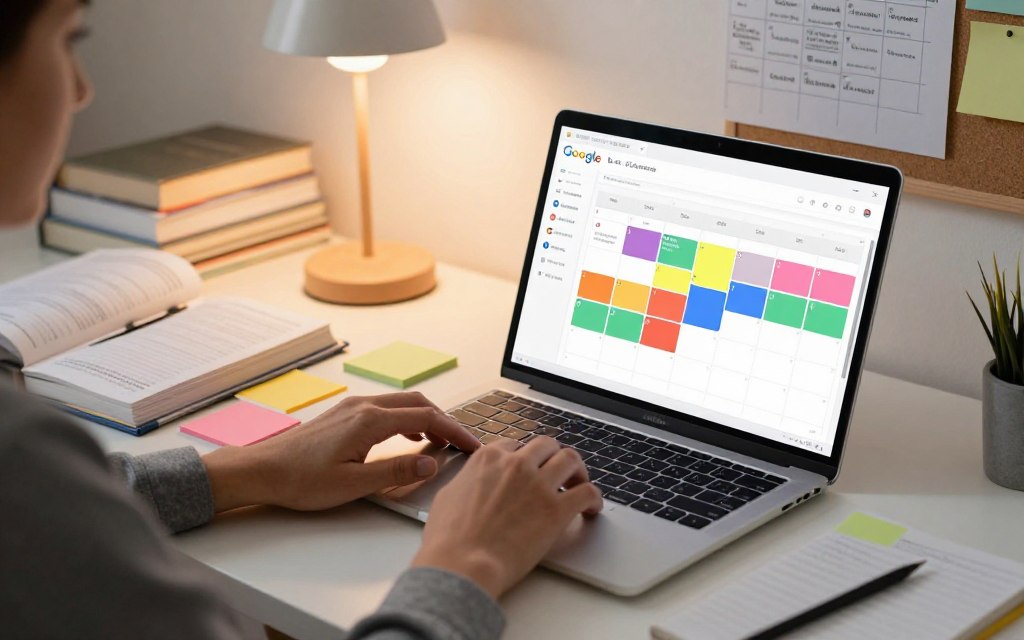
Link Google Drive files such as lecture slides and study guides to events. Add shared Google Docs for group review. Use Google Keep or other note apps to store quick ideas and paste links into event descriptions.
Use reminders and tasks to turn plans into action. Add specific to-dos that sync across devices so your list shows up beside scheduled sessions. For big assignments, create task lists with subtasks and tie them to milestone dates to boost improving academic performance with google calendar.
Sync Gmail events and messages so class changes appear automatically. Schedule Google Meet sessions for study calls and link them to events. Use Google Tasks for bite-sized action items and connect third-party apps when they respect privacy.
Woodsville High School recommends integrating Google Drive, Gmail, and Google Tasks to keep resources centralized. Dennis Learning Center notes that linking resources and using the mobile app or widget makes materials accessible on the go, helping with integrating google calendar into your study routine.
Below is a quick comparison to help you decide how to attach and access materials during study time.
| Resource Type | How to Attach | Best Use |
|---|---|---|
| Lecture Slides | Attach via Google Drive link on the event | Open at session start for focused review |
| Notes / Outlines | Link Google Docs or Google Keep notes in the description | Refer quickly for summaries and key points |
| Assignments | Create a task with subtasks and add to event | Track progress and deadlines clearly |
| Study Calls | Add Google Meet link to the event | Host group sessions and share live resources |
| Emails / Registrations | Allow Gmail to create events automatically | Keep schedule aligned with official dates |
Sharing Your Calendar with Classmates
Sharing your schedule can make group work easier and avoid last-minute rushes. Set clear rules for who can change events. This keeps everyone in sync on phones and laptops. These habits are key for planning study sessions and club meetings.
Benefits of Collaboration
Shared calendars help plan group projects and meetings better. When everyone sees the same events, you avoid conflicts and missed sessions. Being open about plans makes planning fair for all.
Letting trusted teammates edit events makes changes faster. They can add study blocks, attach files, or move sessions without waiting. Schools like Woodsville High School say shared calendars help coordinate groups and keep activities in sync.
How to Share Your Calendar
Open Google Calendar and use the “Share with specific people” option to invite classmates by email. Choose a permission level that fits your team: view only for observers, or edit for active collaborators. This lets you control who can change events.
Create a group calendar for ongoing projects or clubs. Let members add events and attach documents. Use the “Find a time” feature to find slots that work for everyone.
| Action | When to Use | Benefit |
|---|---|---|
| Share with specific people | Small study groups or project teams | Controlled permissions and easy invites |
| Create a group calendar | Clubs, long-term projects, recurring meetings | Central place for events and attachments |
| Set view-only access | Parents, advisors, or observers | Prevents accidental edits while keeping transparency |
| Use Find a time | Scheduling multi-person study sessions | Quickly finds mutual availability |
| Sync across devices | When members use phones, tablets, and laptops | Keeps everyone up to date in real time |
Try these tips for using Google Calendar to reduce confusion and save time. Sharing your calendar with classmates makes teamwork smoother and less stressful. Follow these steps for planning study sessions and keep your group on track for success.
Using Event Notifications Effectively
Good notifications help turn plans into action. By setting up study reminders in Google Calendar, you avoid last-minute stress. This builds a routine that you can follow.
Setting up reminders for study sessions
Begin by adding event notifications to your study sessions. Choose alerts that give you time to prepare, like minutes or hours before. For big tasks like exam prep, set reminders a day before and an hour before.
Use email alerts for longer times and pop-up or mobile notices for quick reminders. Woodsville High School suggests setting at least two reminders for big deadlines to stay on track.
Customizing notification times
Adjust notifications for each event or set default times for your whole calendar. For regular study sessions, use short lead times. For bigger tasks, like essays and exams, choose longer times to plan.
On mobile, turn on lockscreen widgets and notifications to see upcoming sessions easily. The Dennis Learning Center advises using widgets and mobile alerts for a daily overview and to stay focused.
| Use Case | Suggested Notification Setup | Why It Helps |
|---|---|---|
| Daily Study Block | Pop-up 10 minutes before | Quick cue to switch gears and start focused work |
| Weekly Review Session | Email 24 hours before, pop-up 30 minutes before | Time to gather materials and mentally prepare |
| Major Exam or Project | Email 7 days before, email 1 day before, pop-up 1 hour before | Ensures long-term planning and final review readiness |
| Group Study | Pop-up 15 minutes before, calendar invite reminder | Keeps everyone on schedule and reduces delays |
These tips help manage your time better with Google Calendar. Try different setups to find what works best for you.
Tracking Your Progress and Goals
Google Calendar helps you keep track of your goals and study plan. Add clear checkpoints and log your outcomes after each session. This way, you can fine-tune your study time and stay motivated.
Creating Milestones in Google Calendar
Mark important dates like midterms and finals as all-day events. Break down big tasks into smaller ones. This helps you avoid cramming at the last minute.
Use the monthly view to plan ahead, as Woodsville High School suggests. Add notes or attach documents to events. This way, you can see what you’ve done and what’s next.
Reviewing and Adjusting Your Schedule
Do weekly or monthly reviews to check if you’re spending enough time on each subject. Look at your color-coded calendar to spot any imbalances. Then, adjust your study blocks as needed.
Create a fixed commitment calendar, as Dennis Learning Center advises. This separates must-do tasks from flexible study time. Adjust events, add buffer periods, or reassign sessions based on your results.
Track your outcomes after each session. This makes tracking progress with Google Calendar easy. It helps you create a study schedule that really works for you.
Tips for Staying Consistent and Motivated
Building a lasting study habit is easy with simple routines and rewards. Start with small, achievable steps. Use Google Calendar to set reminders and celebrate your successes.
Setting Routine Check-ins
Plan a weekly review to check deadlines and adjust your schedule. A 20-minute Sunday check-in helps spot issues and plan extra time. This makes planning a habit.
After big study sessions, take a few minutes to reflect. Use colors to mark your progress and challenges. This keeps you on track and boosts your study productivity.
Celebrating Small Victories
Set up rewards for reaching milestones, like finishing an assignment or a study streak. Celebrating your wins, like with a green event, boosts your motivation.
Follow the Dennis Learning Center’s advice on fixed commitments for non-academic tasks. Also, leave buffer slots for flexibility, as Woodsville High School suggests. These tips help you stay consistent and manage your time better.
Overcoming Common Challenges
When your calendar gets busy, it’s normal to face obstacles. Use Google Calendar to fight procrastination by setting short, focused study blocks. Set reminders to start right away. Break down big projects into smaller tasks with deadlines to build momentum and track your progress.
Shared calendars or study-group events add a social push, making you more likely to attend study sessions.
Dealing with Procrastination
Try scheduling 25- to 45-minute blocks and label them clearly. Add a reminder five minutes before each block to get you moving. For big assignments, create multiple events for milestones instead of one long task. This method helps fight procrastination by reducing overwhelm and improving consistency.
Adjusting Your Schedule for Flexibility
Make your calendar flexible to handle life’s changes. Use drag-and-drop to move sessions and set custom recurrence for unique schedules like biweekly labs. Leave buffer slots for unexpected events or rest.
Regularly review and update recurring events to match changes in class loads or work hours.
Adopt the Dennis Learning Center’s fixed-commitment method: list all your commitments to see your real availability. This helps you adjust your schedule for flexibility and improve your academic performance with Google Calendar. Small, consistent changes to your calendar can make a big difference in staying on track.